
The primary navigation menu is located on the left hand side of the screen. It lists the areas of access available for your account. Not every user has the same roles and permissions which means some menu items may not exactly match the example below, but navigation will always be listed in the left hand menu.
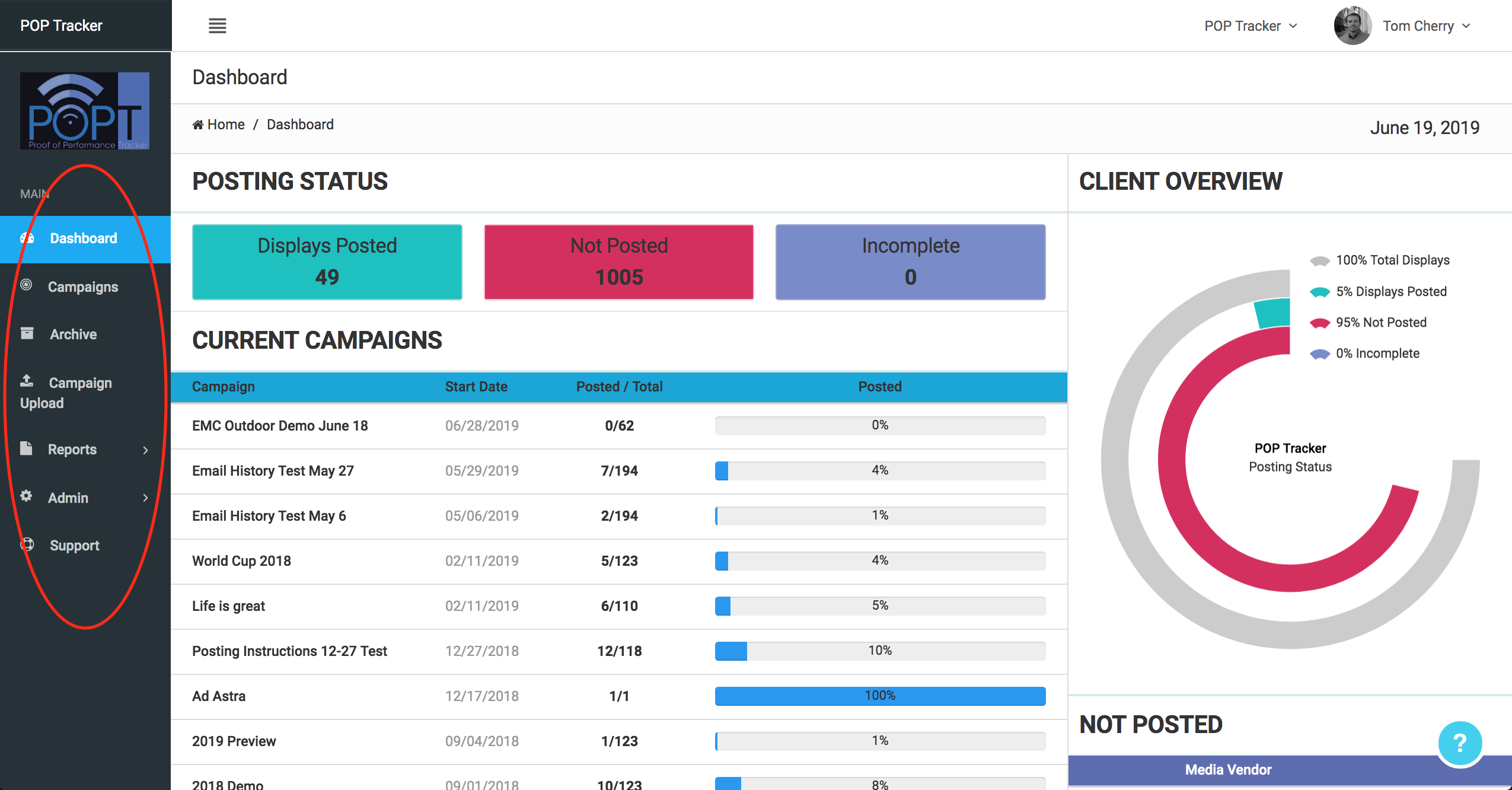
Click to review: Dashboard, Campaigns List or Details, Archive, or Campaign Upload.
PROFILE
Make edits to your user name / phone number, add a profile image, select a primary client, and/or change your password by clicking on "My Profile" from the dropdown on the top right corner with your name on it. Make your edits and click Save.
Client List - Select the client you wish to view/edit using the 2nd dropdown at the top right corner of your screen. This dropdown will show all the clients you have access to.
Missing a client? please contact your supervisor or our Support Team (ops@mypoptracker.com).
POP Tracker Support - support@mypoptracker.com