
If you uploaded a campaign into the wrong client, there's a quick and easy way to move the campaign into the correct client without having to delete and re-upload.
Ex. I uploaded "POP Tracker 2020 - Phase 1" campaign into POPT2019 client instead of POPT2020 client
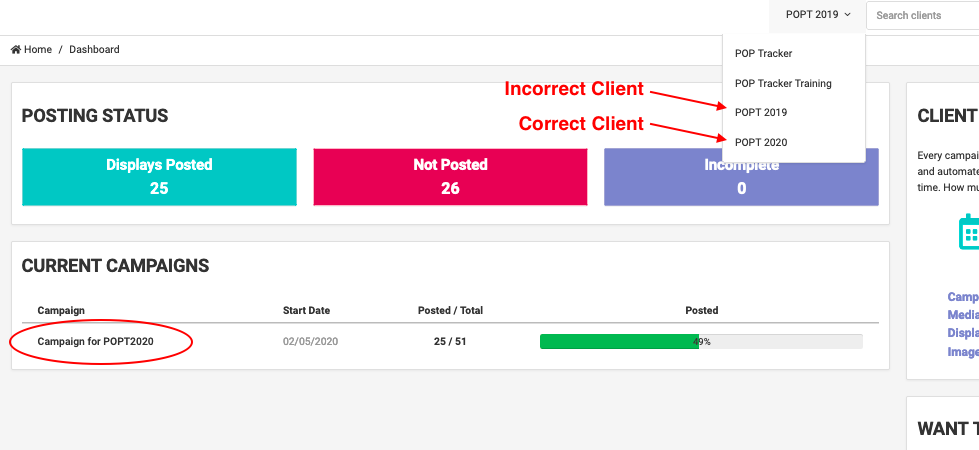
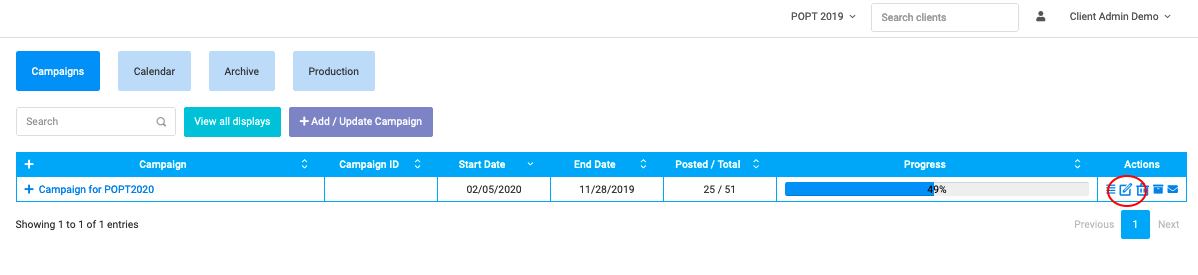
1. Find your campaign in POP Tracker and click Edit Campaign under Action column.
2. The last field, "Clients", switch the dropdown to the correct client.
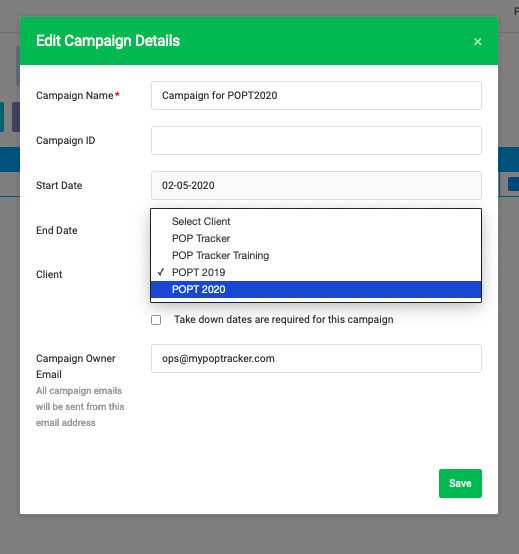
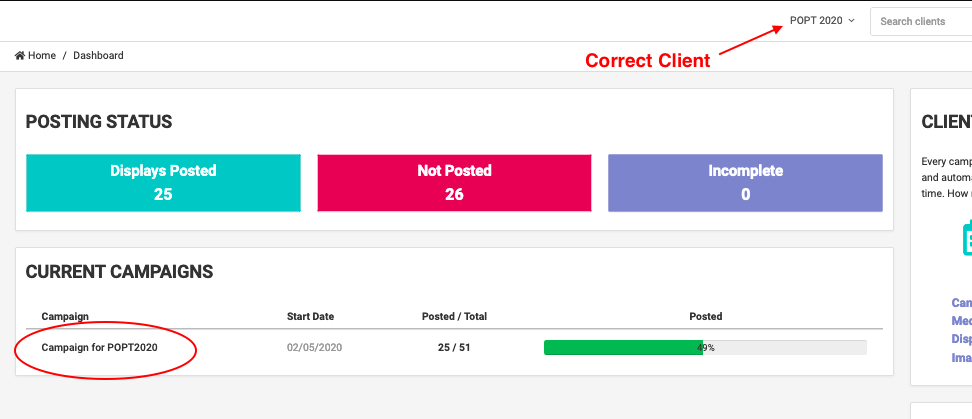
3. Now the campaign will switch from current client to correct client instantly with all the data attached to the campaign, including POP uploaded.
POP Tracker Support - support@mypoptracker.com