

The following instructions will guide you in appending data to an existing campaign in POP Tracker. Appending data includes adding new units/displays to a campaign already in the system as well as adding data to units/displays already in a campaign (if you want to append new units/displays, skip to Step 3.)
1. Locate the spreadsheet you wish to upload. Copy and paste the exact Campaign name, Media Vendor, Market, Media Type, Display ID, Display Location, and Start and End Date. Be careful with spacing.
2. Complete information in all the fields you wish to update or add. Be sure to not overwrite the fields listed in Step 1. (vendor contacts, taglines, etc.)
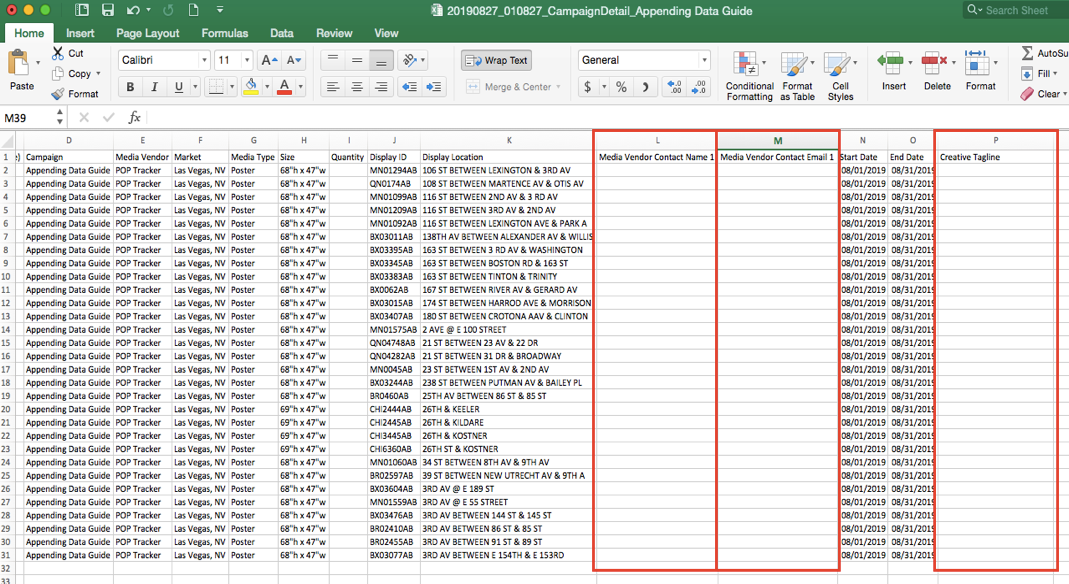
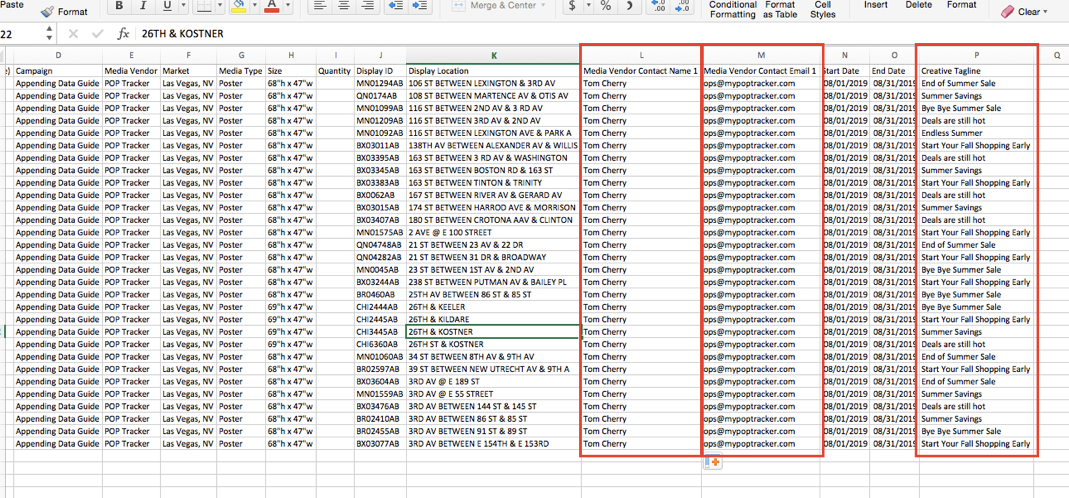
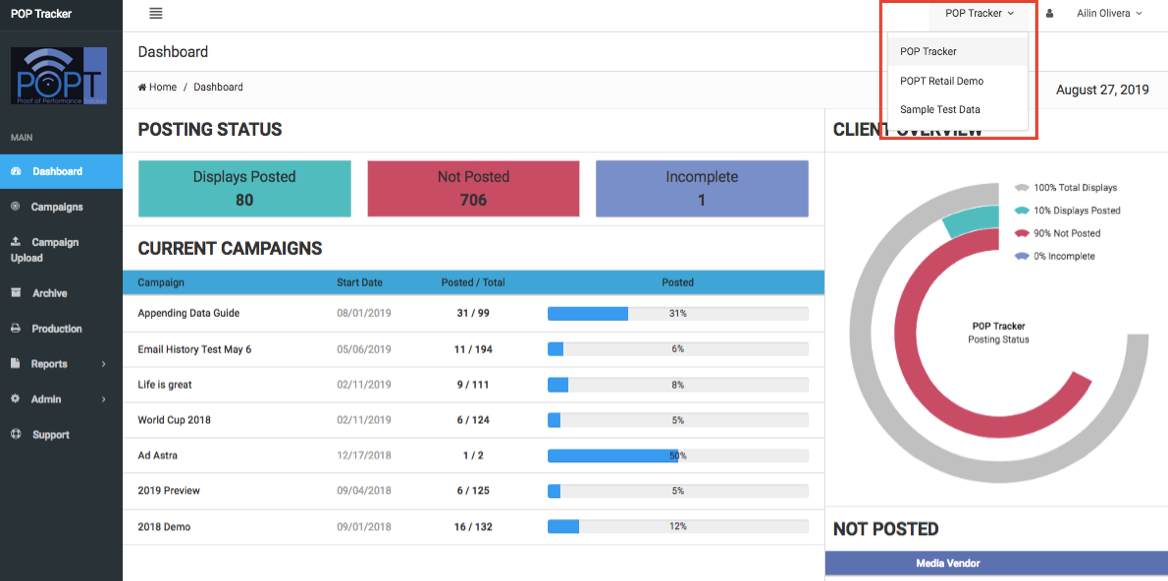
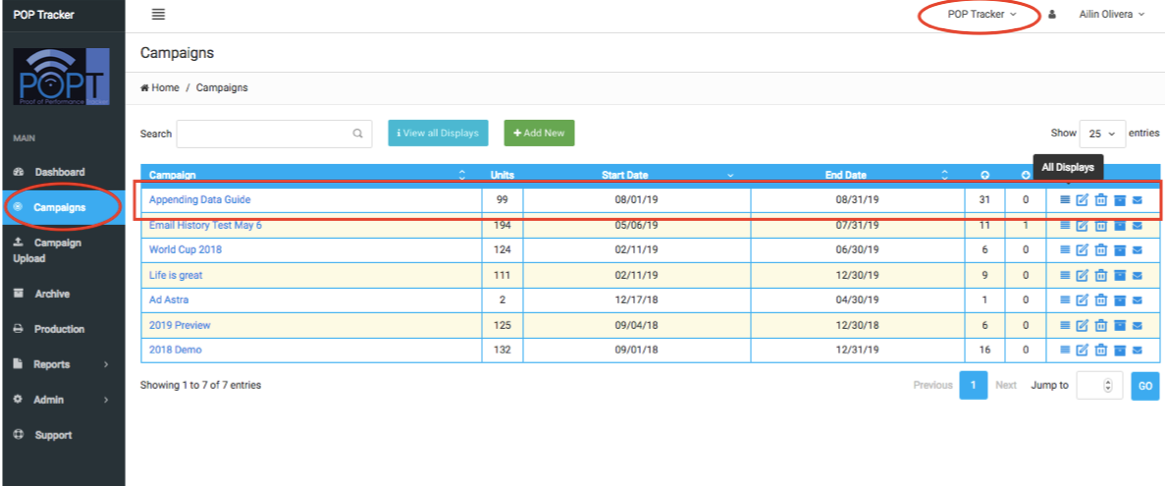
3. Save the spreadsheet. Login to POP Tracker, then navigate to Client and Campaign where you want to append data.
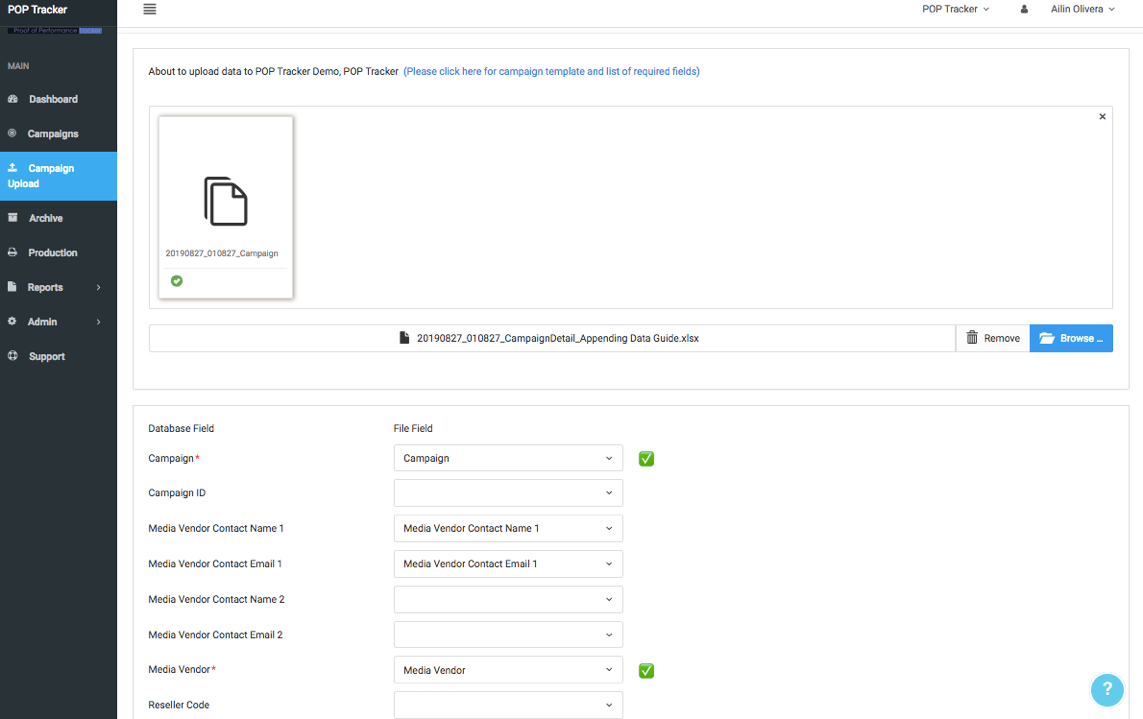
4. Using left-hand navigation, Go to Campaign Upload > import spreadsheet and match fields.
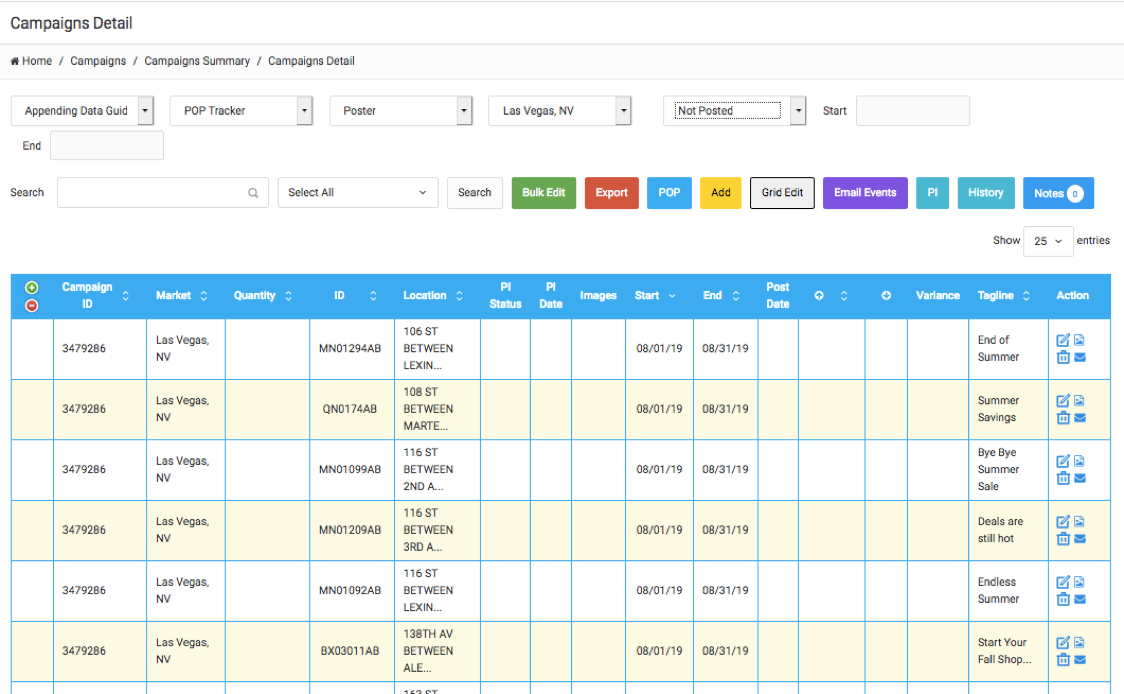
5. After import is complete, navigate to Client and Campaign, select All Displays from the Action column and verify changes (filters can help narrow the data on your screen for easier verification)
POP Tracker Support - support@mypoptracker.com