
1. Log in to your account and navigate to the desired client account and campaign.
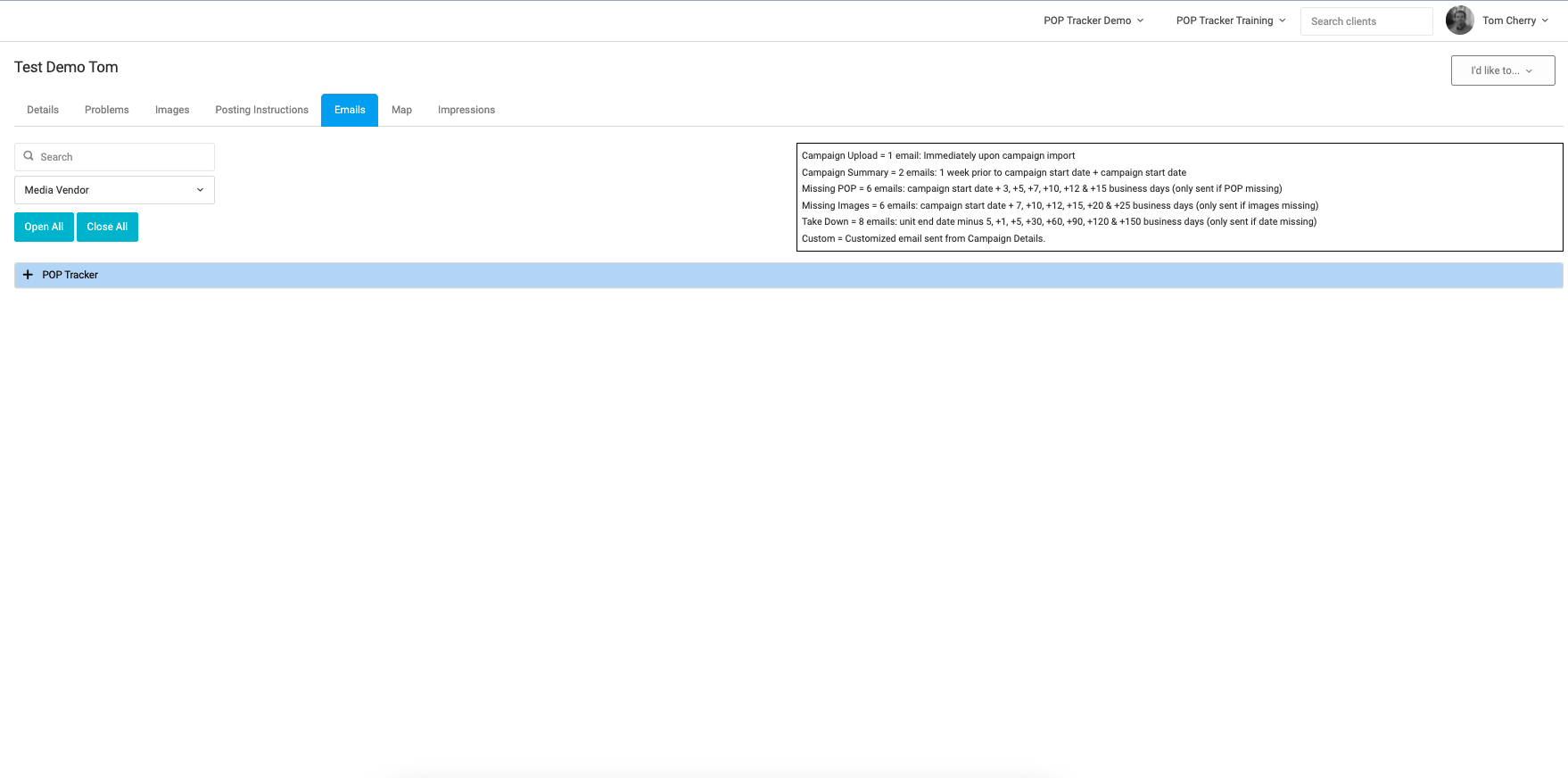
2. At the top of the screen, there are multiple tabs under the campaign name. Select 'Emails'
3. You will see a list of all vendors in the campaign with a + sign to expand the details for one or multiple vendors
4. After selecting + symbol next to a vendor you will see a list of all emails sent to that vendor. You can resend an email from the History section and proactively send scheduled emails from the Upcoming section. Click the envelope to see the exact email the vendor received.
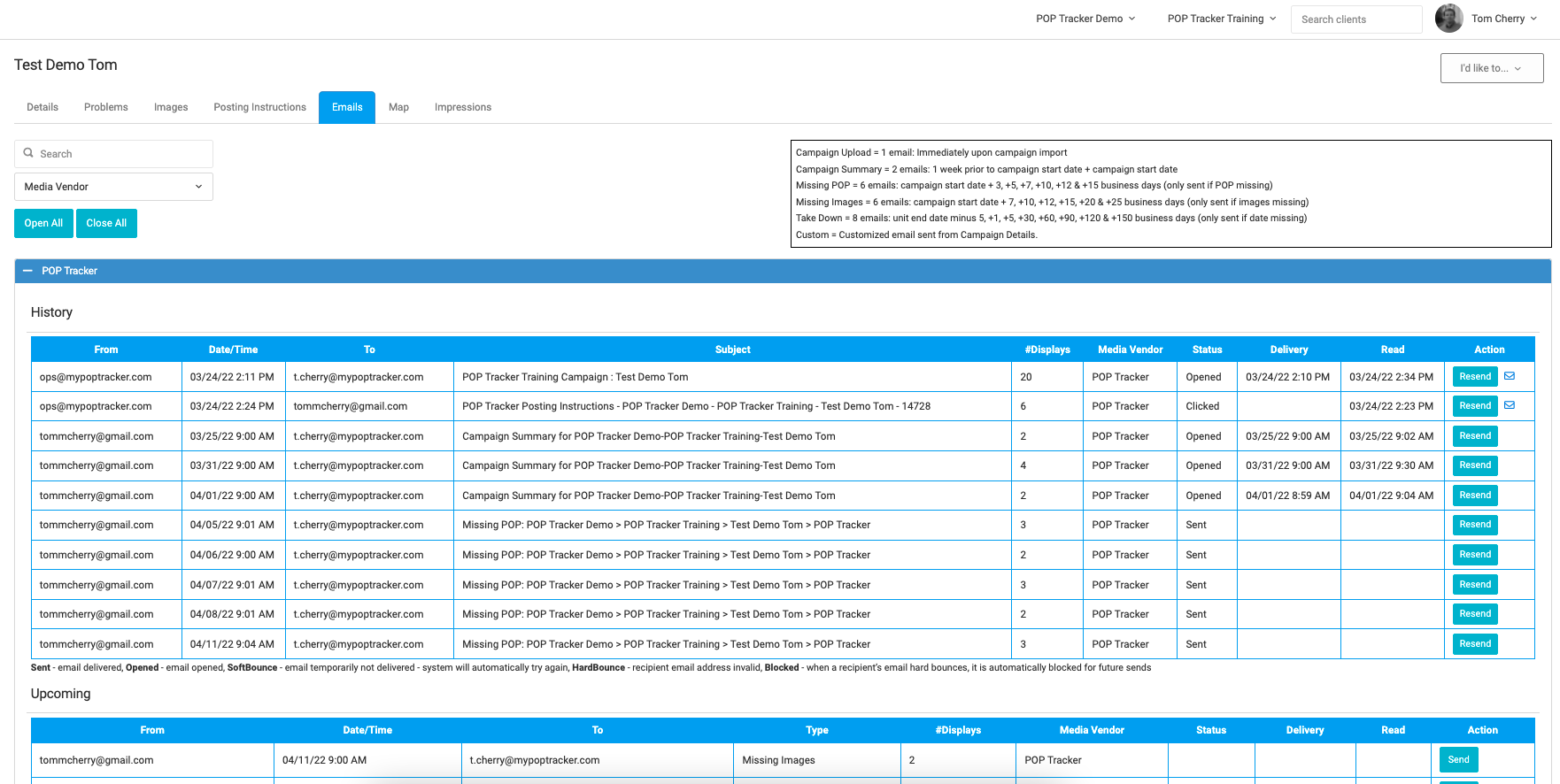
Please note: when manually issuing Upcoming emails, the automated emails will also be sent according to the schedule. The Date/Time column shows the next scheduled email.
POP Tracker Support - support@mypoptracker.com