

How to Activate and Deactivate Users
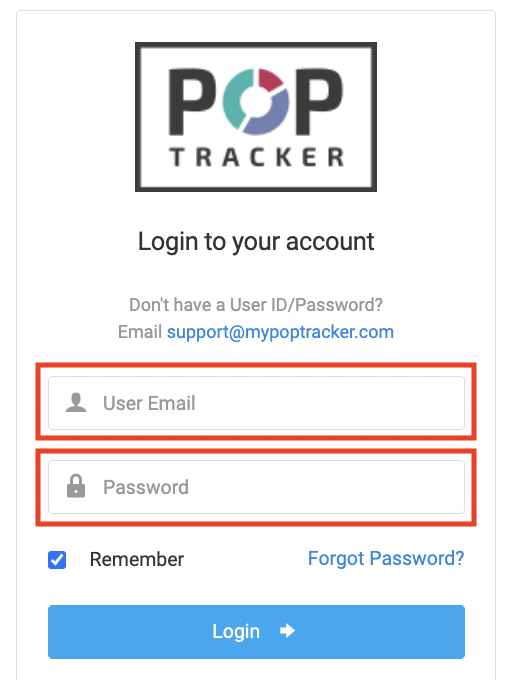
1. Login to POP tracker using your personalized credentials.
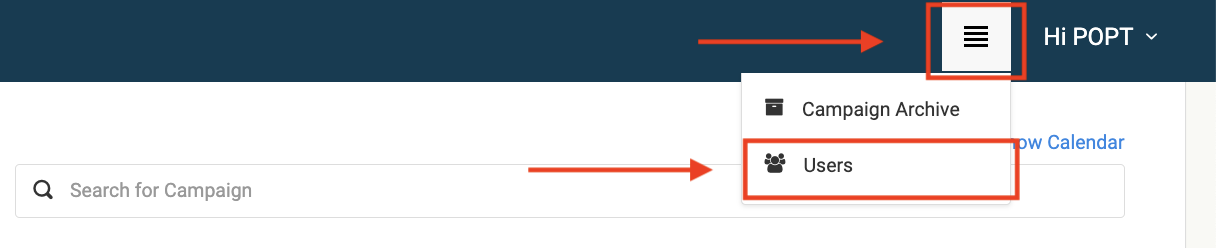
2. In the top right hand corner adjacent to your name, there are 4 lines that when clicked on, display a drop down menu. There will be an option called "Users" and you'll want to select it.
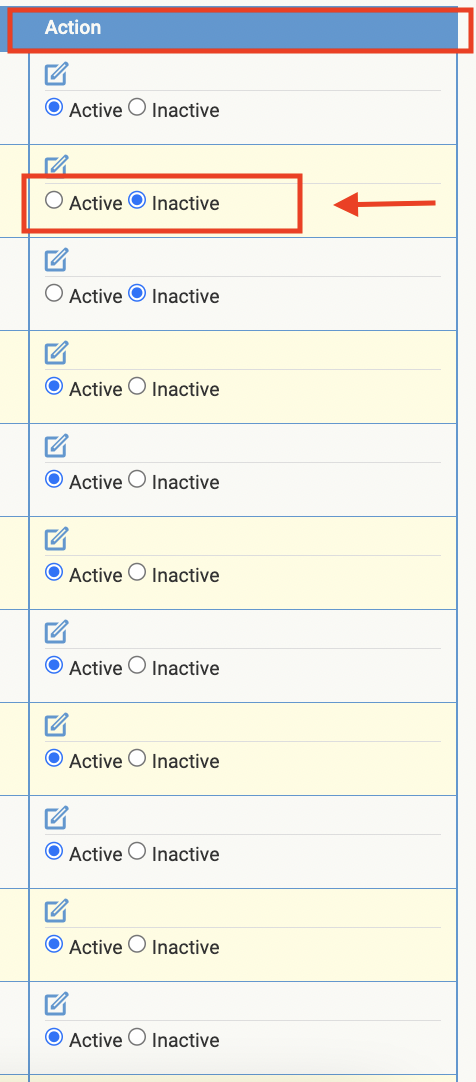
3. On this screen you will see a list of all the users that have access to POP Tracker. The far right hand column of this table is labeled Action. In this column, you have the option to toggle user status between "Active" or "Inactive."
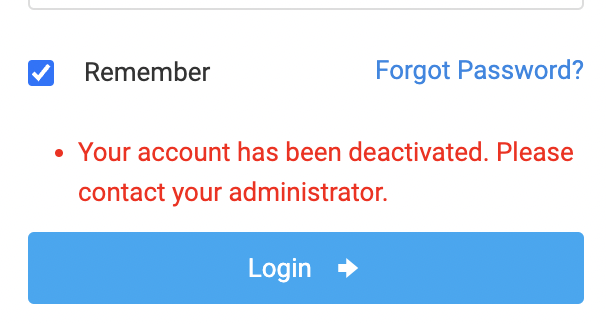
** If an inactive user attempts to login to POP Tracker, they will be given the error message below. When a user is marked as "Inactive," they will not be able to login until an administrator has reactivated their account status.
POP Tracker Support - support@mypoptracker.com