

How to Add a Flight + Creative
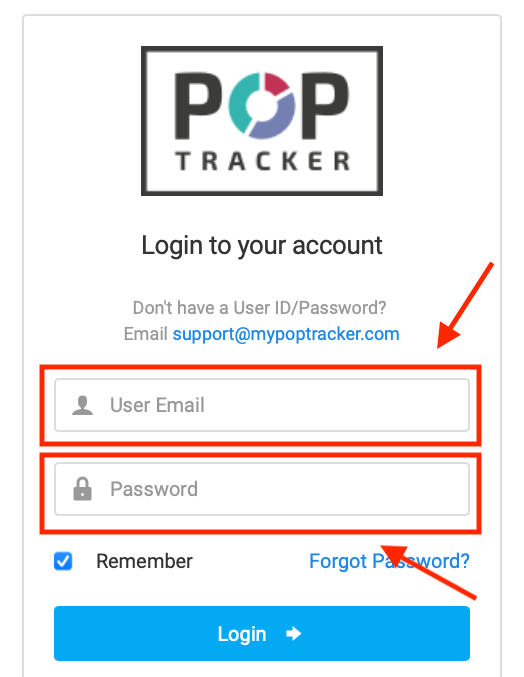
1) Login to POP Tracker using your personalized credentials.
2) Select the client and campaign you wish to add the Flight + Creative to.

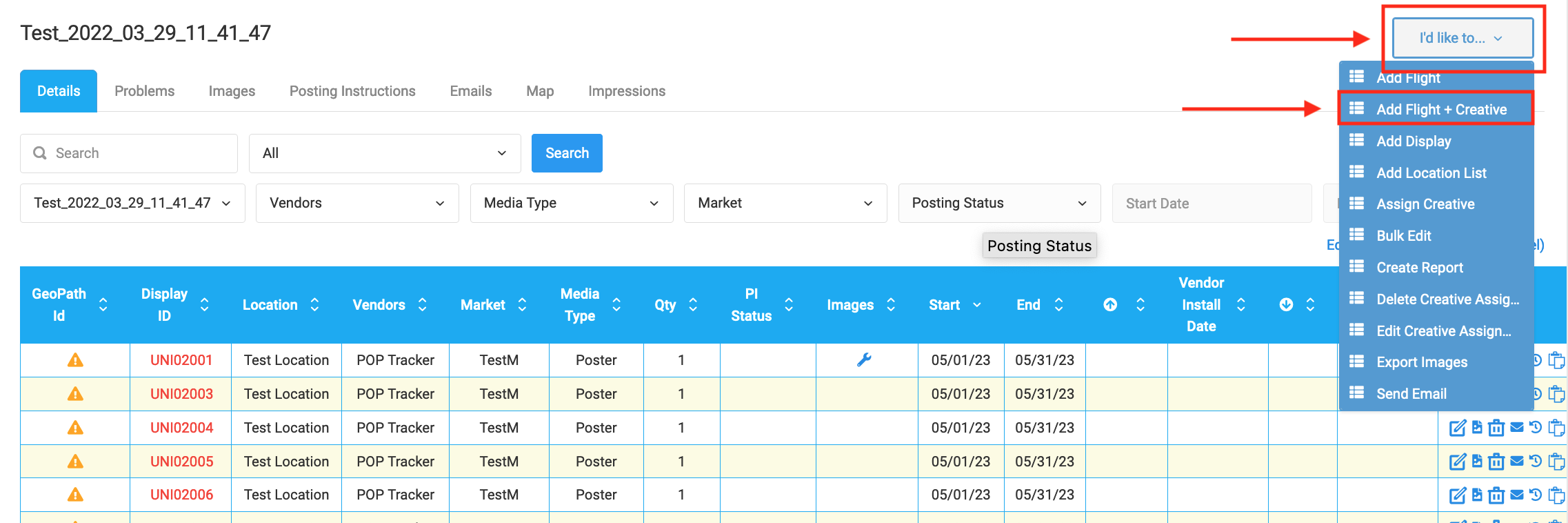
3) Open "I'd like to..." menu (top right corner) > select "Add Flight + Creative".
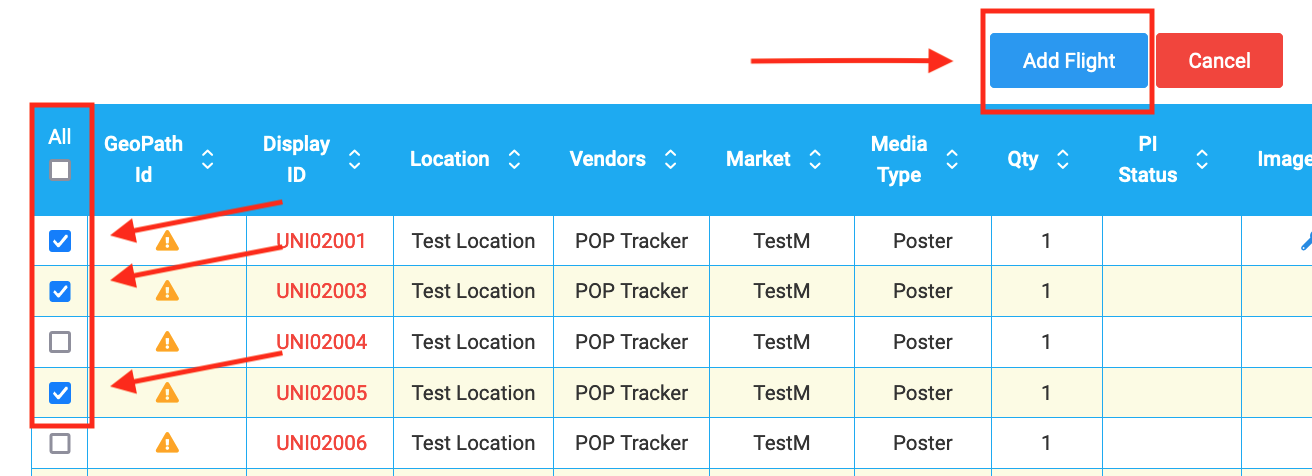
4) Next, you'll select all of the line items you wish to assign the new flight and creative to.
Select each line item individually or Select All (feel free to use filters to narrow your data.
Once you've selected all the line items, select the blue button that says "Add Flight."
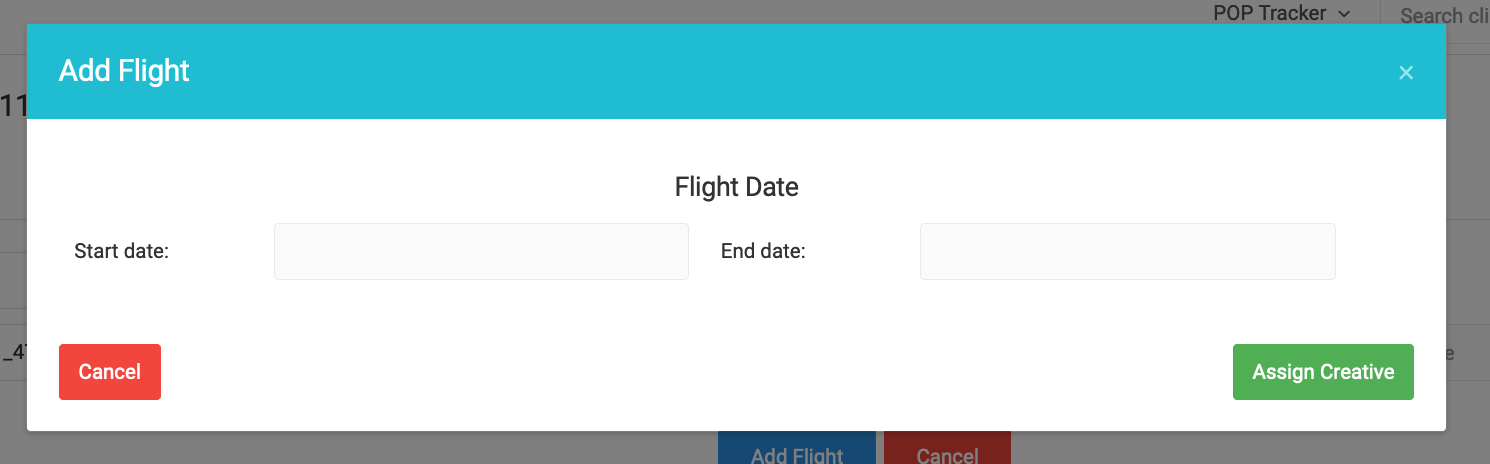
5) When the pop up screen appears, input your Start and End dates for the flight you wish to add. Click "Assign Creative."
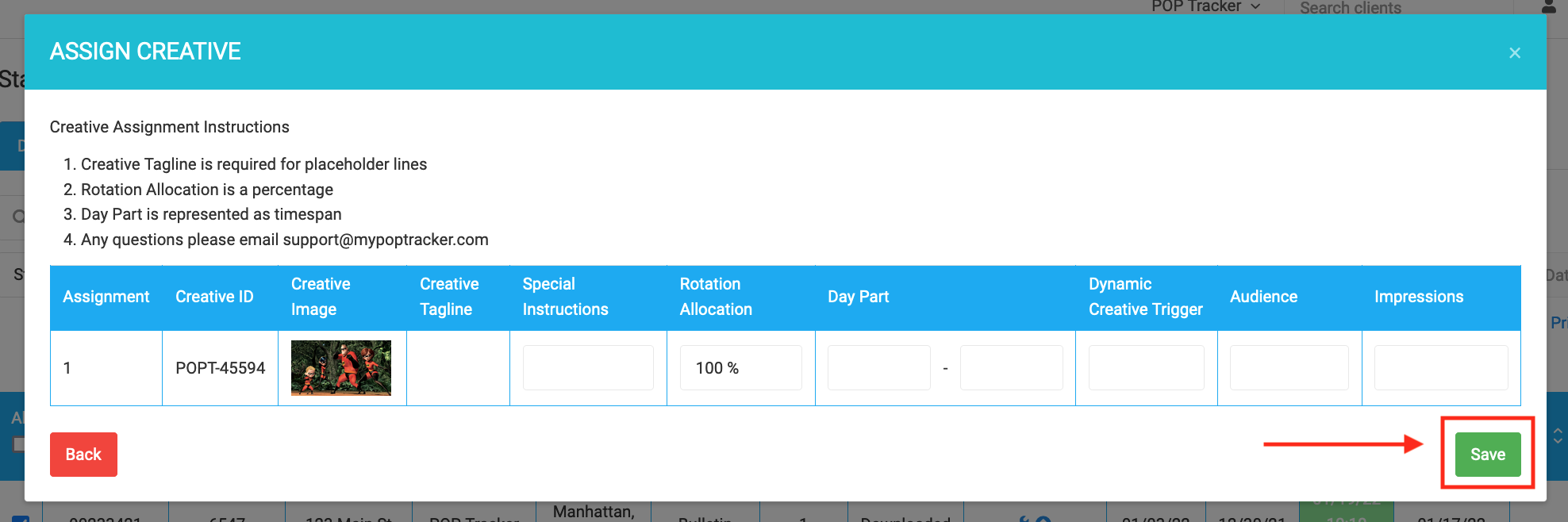
8) The popup will allow you to upload your creative file(s).
Use the dropdown in step 1 to add more creatives. Input data you'd like to mention in your campaign. Note: all of the data imported into the creative assignment popup will appear in the Posting Instructions.
Then click the green "Save" button and you're all set!
POP Tracker Support - support@mypoptracker.com