

How to Archive a Campaign
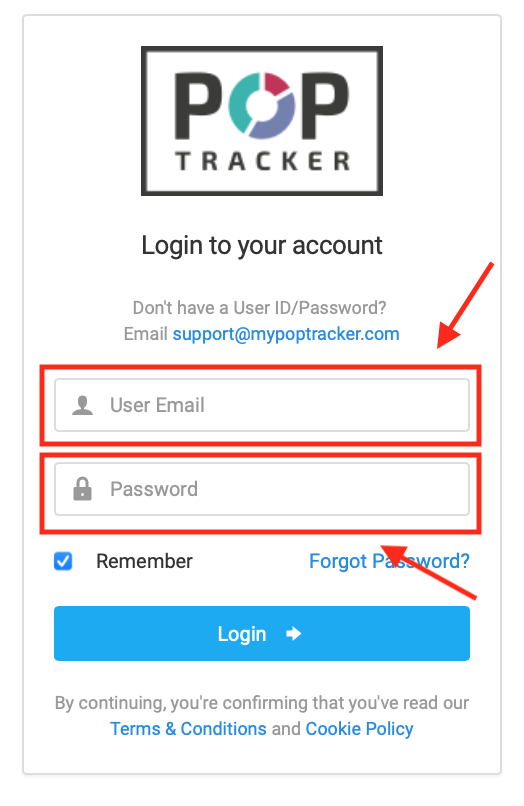
Login to POP Tracker using your personalized credentials.
The next screen you will see is your dashboard, where all clients and campaigns can be seen. You’ll want to locate the exact client and campaign you wish to archive.
On the right side of the line item, there is a red button that says “Archive.”
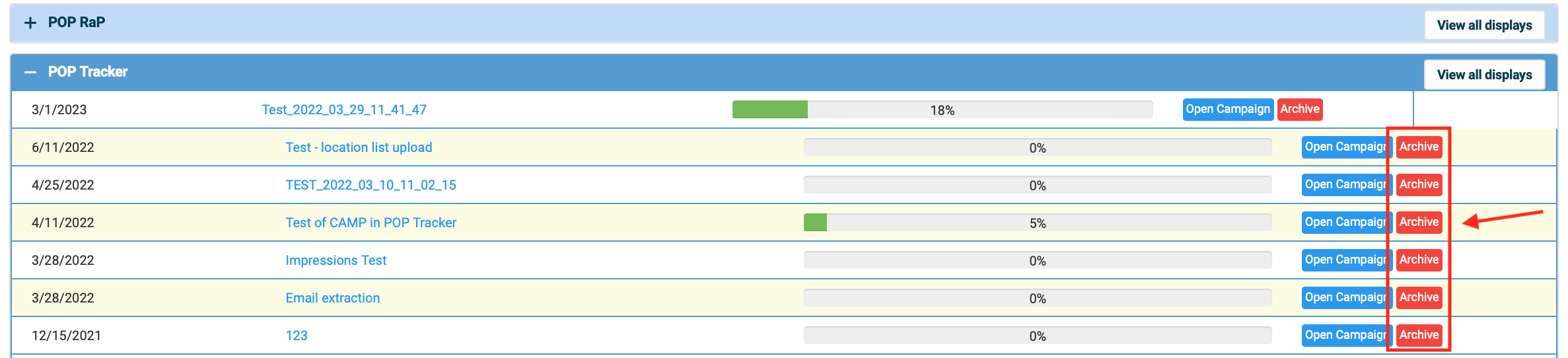
Once you’ve done this, campaign will no longer be visible to you and your team.
How to Unarchive a Campaign
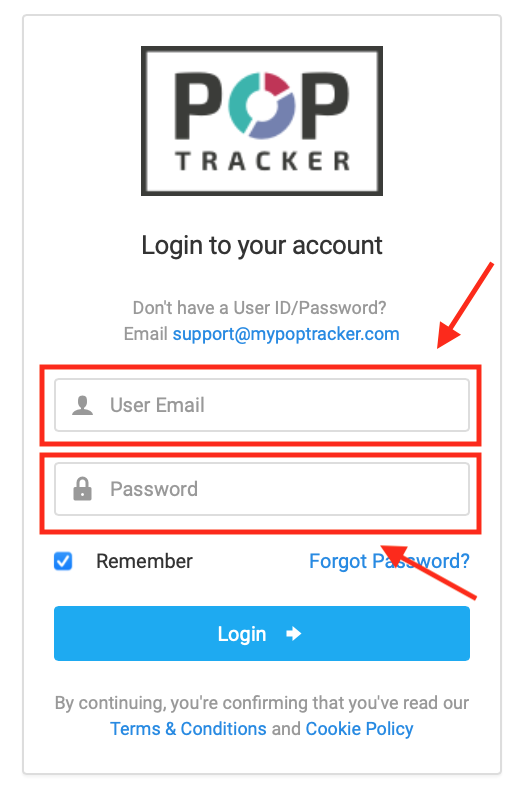
Login to POP Tracker using your personalized credentials.
The next screen you will see is your dashboard, where all clients and campaigns can be seen. On the top right corner, click on the dropdown menu (icon with 4 lines) > select “Archived Campaigns"

You’ll see this screen is set up similar to the dashboard. Locate the specific client and campaign you wish to unarchive. On the right-hand side of the row, there will be a green button that says “Unarchive.” When selected it will instantly bring the campaign back into the dashboard underneath the corresponding client.

Once you’ve done this, campaign is now visible under the client list at the Home screen.
Why Archive?
Archiving campaigns allows you and your team to stay organized and is a way of hiding campaigns you no longer need to address. Keep in mind, once a campaign is archived, the team will need to unarchive to make edits/changes to the POP data.
POP Tracker Support - support@mypoptracker.com